
Import Your Assets in Seconds
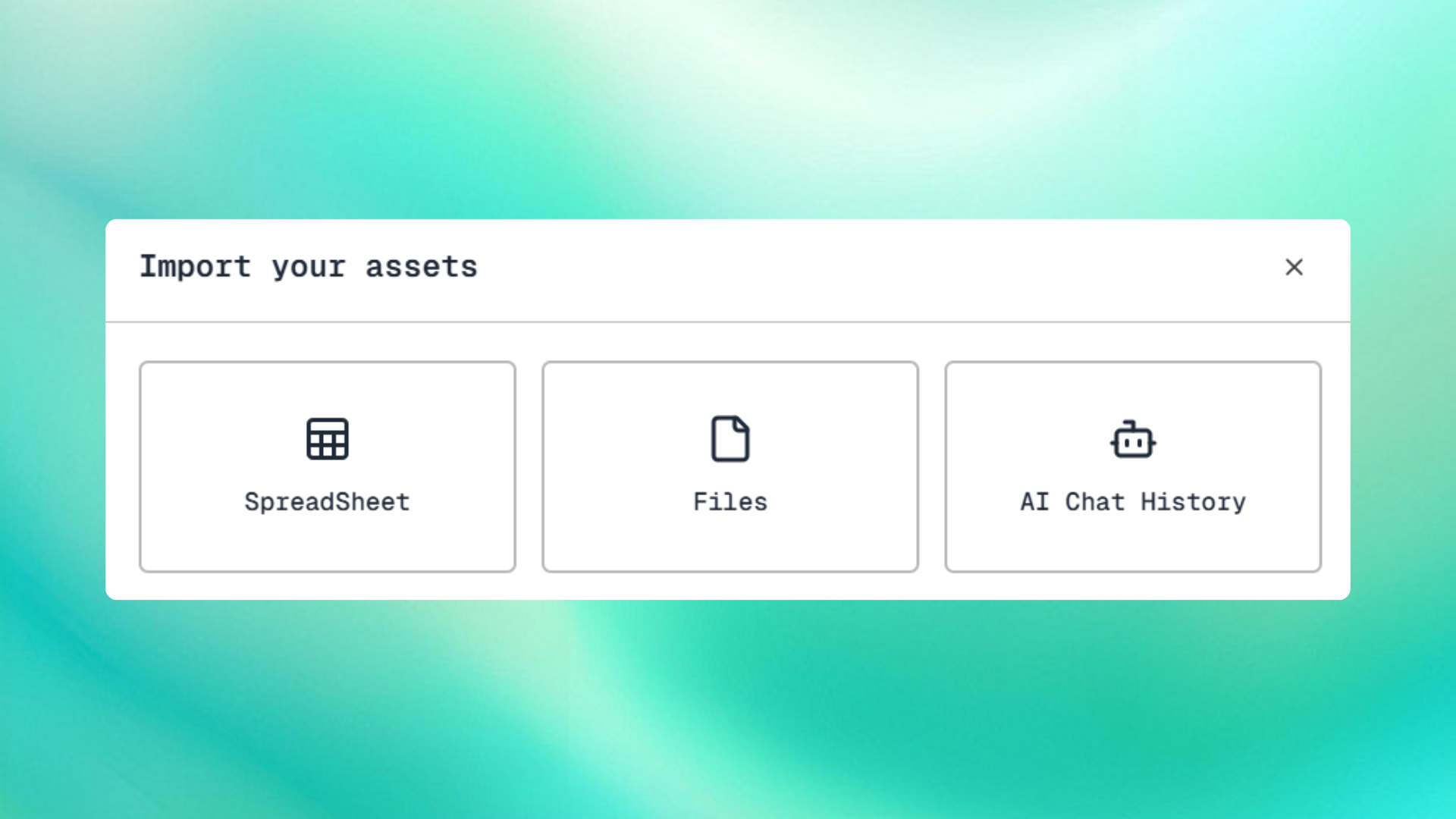
You no longer need to create assets one by one. We've added three powerful import methods to help you migrate your existing prompts, personas, contexts, and system prompts into Versuno instantly.
Three Ways to Import
Spreadsheet Import
Import multiple assets at once from CSV or Excel files.
How it works:
- Click Import Assets → Spreadsheet
- Upload your CSV or XLSX file
- Map your columns to Versuno fields (Prompt Content, Category, Use Case, etc.)
- Review staged assets
- Confirm import
Use case: Perfect for bulk imports. If you have dozens or hundreds of prompts in a spreadsheet, import them all in one go.
Supported formats: CSV, XLSX (Excel)
File Import
Import assets from text files, markdown, or any file format.
How it works:
- Click Import Assets → Files
- Drag and drop files or browse
- Each file becomes one asset
- Review and confirm
Use case: Great for importing from Google Docs exports, Notion markdown files, or text files where you've saved prompts.
Supported formats: TXT, MD, JSON, and more
AI Chat History Import
Copy prompts directly from ChatGPT, Claude, Perplexity, or any AI tool.
How it works:
- Open your AI chat app
- Copy a prompt you want to save
- Click Import Assets → AI Chat History
- Paste your prompt
- Select asset type (Prompt, Persona, Context, System Prompt)
- Add a title and import
Use case: Perfect for saving your best ChatGPT conversations, Claude prompts, or Perplexity frequent research requests.
💡 Tip: You can ask AI to turn extract meaningful prompts from your conversations into prompts, personas, system prompts, or custom instructions and save them to Versuno.
Staged Assets Sidebar
All imports are staged before being saved to your library. This gives you a chance to:
- Review what's being imported
- Edit individual assets before saving
- Remove any assets you don't want
- Change asset types (e.g., change Prompt to Persona)
Why This Matters
Before this feature, you had to manually create each asset one by one. Now you can:
- ✅ Import 100+ prompts from a spreadsheet in seconds
- ✅ Save your best prompts, personas, contexts from AI conversations
- ✅ Migrate from other tools (Notion, Google Docs) instantly
- ✅ Review and organize before committing to your library
No more tedious copying and pasting. No more starting from scratch.